
With Opal’s Always Allowed feature, you may dictate which apps or websites must always be available on your device. This may be especially helpful for apps related to health, banking, public transit, and the like. To designate which apps or websites are "Always Allowed," take these steps:
- Open the Opal app
- Tap on the "My Apps" tab
- Tap on “Always Allowed”
- Tap on “+ Add App or Website”
- Select the apps/ websites you want to be “Always Allowed”
- Tap "Done"
Once that's complete, apps or websites designed as “Always Allowed” will never be blocked. Opal will also not notify you via Autofocus about apps or websites designated as Always Allowed. Opal will also add all of the apps on your “Always Allowed” list automatically to any Schedule that uses Allow Only.
‼️ It’s important to note that you will not be able to add entire app categories to your Distracting, Always Allowed, or Never Allowed apps.
How do I add apps or websites on my “Always Allowed” list to a Schedule, Time Limit, or Open Limit?
Your “Always Allowed” list within Opal will supersede any Schedule, Time Limit, or Open Limit that you initiate. That said, you if you remove an app or website from your “Always Allowed” apps, you may then successfully block it.
What happens if I have “Always Allowed” apps set up within my iOS device Settings?
Opal’s “Always Allowed” and “Never Allowed” apps or websites will supersede any apps you’ve designated as “Always Allowed” in your iOS Settings. For that reason, we’d recommend ensuring that you set-up both your “Always Allowed” and “Never Allowed” lists as intended within Opal.
How do I remove an app from my “Always Allowed” list?
To remove an app from “Always Allowed,” take these steps:
- Open the Opal app
- Tap on the "My Apps" tab
- Tap on “Always Allowed”
- Tap on the “x” beside the app/website you’d like to remove
- Tap "Delete"
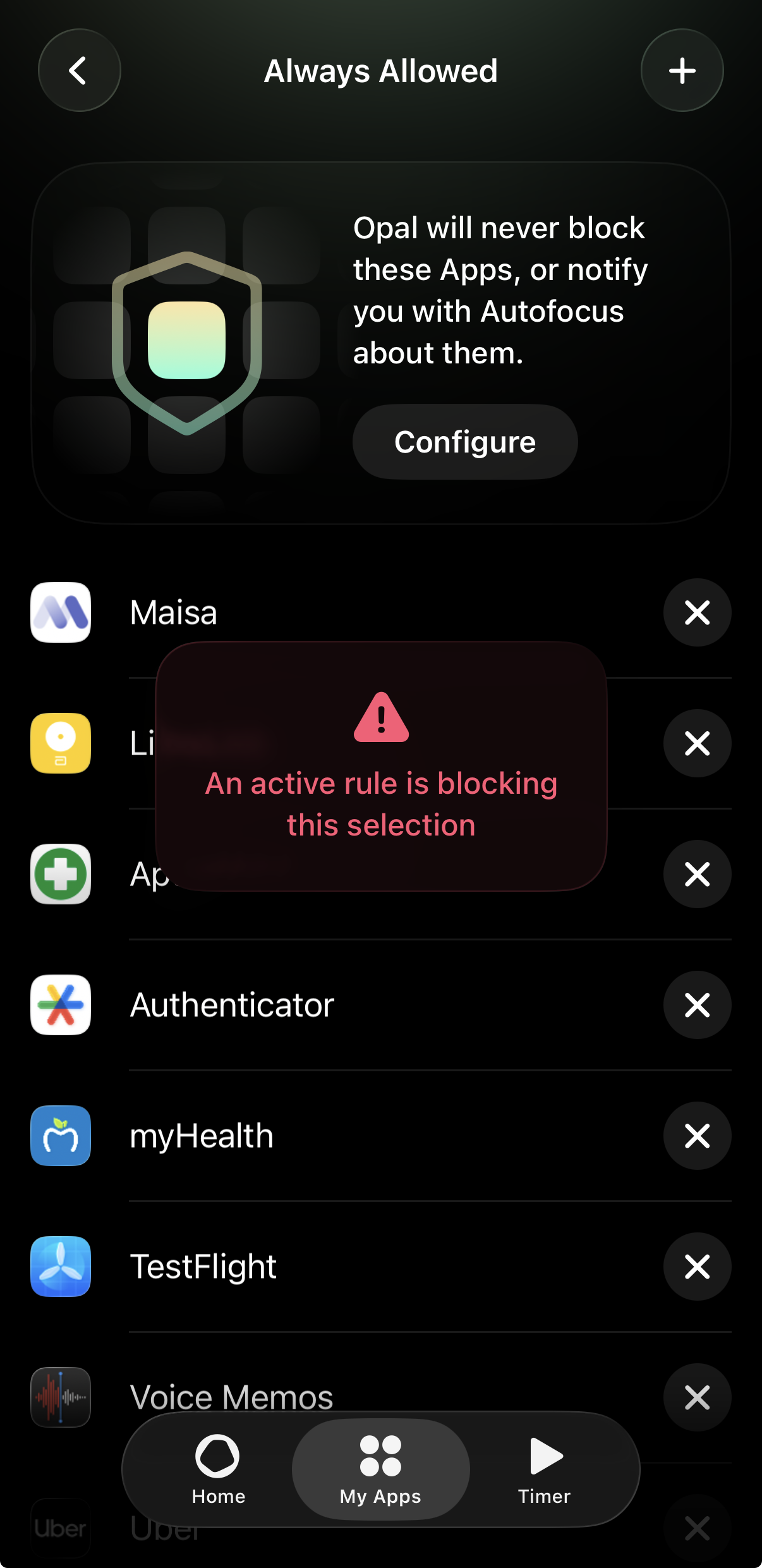
What happens if I add an app that is being actively blocked by a Rule to my “Always Allowed” apps list?
If you attempt to add an app that is currently being actively blocked by a Session, Schedule, Time Limit, and/or Open Limit to your list of “Always Allowed” apps, you should see an error message appear. That error message will state “An active rule is blocking this selection.” This is intentional behaviour and is implemented to prevent you from bypassing your Rules. Once that Rule ends, you may then remove that app from your “Always Allowed” list.
‼️ If you’re encountering behaviour with your “Always Allowed” apps that does not match the scenarios outlined above, please contact Support by navigating to your Settings > Contact Support.