
Time Limits are an integral feature of Opal. They allow you to block apps/websites you find distracting for a scheduled period of time. All Opal users, regardless of subscription status, may set up three Rules (including Time Limits). Meanwhile, those who’ve upgraded to Opal Pro may set unlimited Rules (on a weekly schedule).
How do Time Limits Work on iOS?
When you reach your cumulative limit on the apps/websites you've selected,** **they will be blocked for a duration you set. That means if you set a 30-minute Time Limit which applies to both Instagram and TikTok, you may use that total on both or either before you are blocked. If you'd prefer to have 30 minutes for each app, you will need to set up individual Time Limits.
It’s very important to mention that due to Apple restrictions, Time Limits are affected by iOS’s “Share Across Devices” setting. If “Share Across Devices” is toggled on, Apple will combine Time Limit usage from every Apple device signed in to your Apple Account. This means that if you’re in a Family Sharing group, your Time Limit may include usage reported on those devices too - even if your family members do not use Opal. To prevent your Time Limits from including Screen Time from your Family Sharing group, follow these steps:
- Open your device “Settings”
- Tap on “Screen Time”
- Toggle “Share Across Devices” to Off
Unfortunately, Opal is unable to segregate this usage due to how Apple reports app Screen Time totals. Instead, you’ll need to ensure that “Share Across Devices” is toggled to Off to ensure that your Time Limits work as intended.
‼️ Toggling “Share Across Limits” to off in your device Settings will not remove Time Limit usage that has already been counted today. Instead, once that feature has been toggled off, your Time Limits will count only your individual usage moving forward.
How do I add a Time Limit on the iOS version?
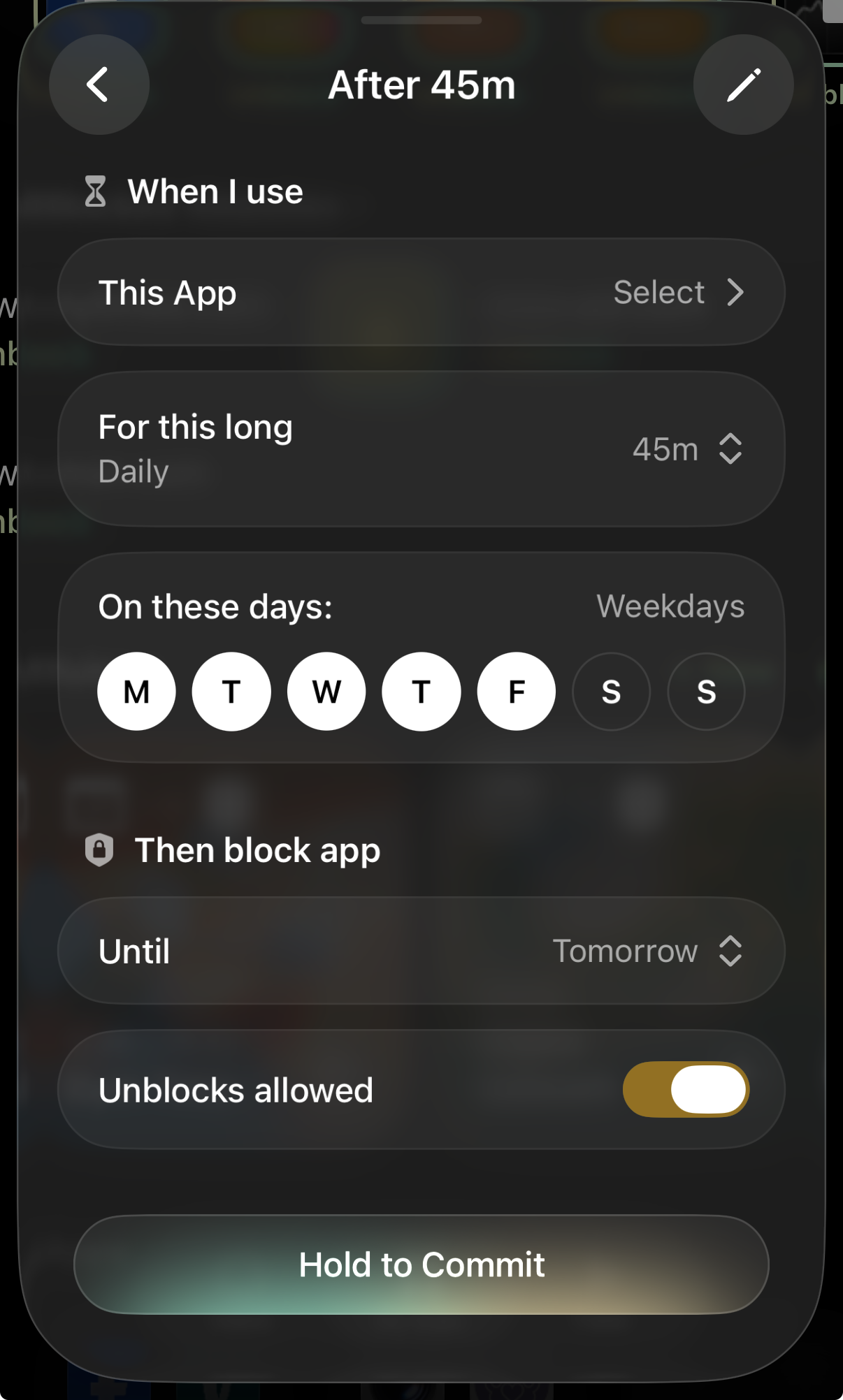
To add an Time Limit on the iOS version of the app, tap on the "+ New Rule" button on the "My Apps" tab and tap “Time Limit". You may then edit the following information about your Time Limit by tapping on the adjacent editing icons:
- “When I use this App”
- “For this long”
- "On these days"
- “Then block app until”
- "Disable Resets”
In the "Disable Resets" option, you will have two protection level options available:
- Off: You may reset your Time Limit or cancel your Time Limit
- On: No resets allowed (available only on Opal Pro): Can't reset your Time Limit after your limit has been exceeded. Get one emergency pass per week
Once you’ve set up your Time Limit, tap “Hold to Commit” until you see the word “Committed” appear. Your Time Limit is now live.
How can I unblock my app or website in a Time Limit on the iOS version?
You may only take breaks on apps or websites with “unblocks allowed.” If you have multiple Rules applying to the same app or website, “no unblocks allowed” will supersede all other protection levels. However, if unblocks are allowed, you may unblock by following these steps:
- From the “My Apps” tab, tap on the blocked app you’d like to access
- Wait for the Waiting Room to countdown
- Tap “Continue”
- Select how long you would like to “Unblock for….”
- Tap “Unblock”
If you’ve setup your Time Limit so that it does not allow unblocks, you will be unable to follow the steps above. Instead, you must wait until it resets to edit it.
How Can I Pause, Edit, or Delete My Time Limit on the iOS version?
You may pause, edit, or delete Time Limits that have “resets” allowed. You may edit, cancel, or delete your Time Limit by following these steps:
-
From the “My Apps" tab, tap on your Time Limit (below “Rules”)
-
Tap “Edit,” “Reset Limit,” or “Pause Rule” (depending on your preference)
-
To “Edit” your Time Limit
-
Tap “Edit”
-
Wait for the Waiting Room to countdown
-
Tap “Continue”
-
Make the changes you prefer, and tap “Done”
-
If you instead want to “Delete Rule,” tap the button
-
To “Reset Limit” on your Time Limit
-
Tap “Reset Limit”
-
Wait for the Waiting Room to countdown
-
Tap “Continue”
-
If you reset your Time Limit
-
To “Pause Rule” on your Time Limit
-
Tap “Pause Rule”
-
Wait for the Waiting Room to countdown
-
Tap “Continue”
-
“Set pause duration”
-
Tap “Pause”
-
If you instead want to “Delete Rule,” tap the button
What if I need to access to an app or website that’s locked on the iOS version?
If you require emergency access to an app that is locked, the iOS version of Opal has an Emergency Pass that you may once per week. Here's how to disable a locked app/website in the event of an emergency:
- Open the Opal app on your iOS device
- Tap on “Home”
- Tap on “Profile” (accessible from the profile icon in the top right corner)
- Tap on “Settings” (accessible from the gear icon in the top right corner)
- Scroll down and tap on “Emergency Pass”
- Tap “Hold to Redeem”
This button will cancel all of your currently running Sessions, Schedules, Time Limits, and/or Open Limits for one hour, and will also cancel any “Hard Mode” Timer that is active. If your recurrent Sessions, Schedules, Time Limits, and/or Open Limits are programmed to reinitiate, you must edit or delete them (as needed) immediately after using your Emergency Pass. It's also important to note that the "Emergency Pass" should only be used when necessary, as it is strictly available once per week. If you've already used your “Emergency Pass” this week, our Support team is unable to force end a Session, Schedule, Time Limit, Open Limit, or Timer for you. For that reason, we recommend only using your Emergency Pass in a true emergency.
Why are my Time Limits initiating too early on the iOS version of the app?
If you’ve been using our Time Limit feature and noticing that your Time Limits are implemented before you’ve used your daily allotted time, it’s likely due to an issue within Apple. On that note, due to Apple restrictions, Time Limits are affected by iOS’s “Share Across Devices” setting. If “Share Across Devices” is toggled on within your device, Apple will combine Time Limit usage from every Apple device signed in to your Apple Account. This means that if you’re in a Family Sharing group, your Time Limit may include usage reported on those devices too - even if your family members do not use Opal. To prevent your Time Limits from including Screen Time from your Family Sharing group, follow these steps:
- Open your device “Settings”
- Tap on “Screen Time”
- Toggle “Share Across Devices” to Off
Unfortunately, Opal is unable to segregate this usage due to how Apple reports app Screen Time totals. Instead, you’ll need to ensure that “Share Across Devices” is toggled to Off to ensure that your Time Limits work as intended.
As an aside, it’s important to note that toggling “Share Across Limits” to off in your device Settings will not remove Time Limit usage that has already been counted today. Instead, once that feature has been toggled off, your Time Limits will count only your individual usage moving forward. However, as a final step, after you’ve toggled off “Share Across Devices,” we’d recommend deleting and recreate the Time Limits using the steps here:
https://help.opalapp.com/article/how-to-use-time-limits
If you’ve taken those steps and your Time Limit continues to prematurely initiate, please contact Support.
‼️ If you’re encountering any other issues with your Time Limit than those listed above, please contact Support by navigating to your Settings > Chat with Support.