
Sessions are an integral feature of Opal. They allow you to immediately start a non-recurring Session. All Opal users, regardless of subscription status, may set up unlimited immediate Sessions. Meanwhile, those who’ve upgraded to Opal Pro may set unlimited Rules.
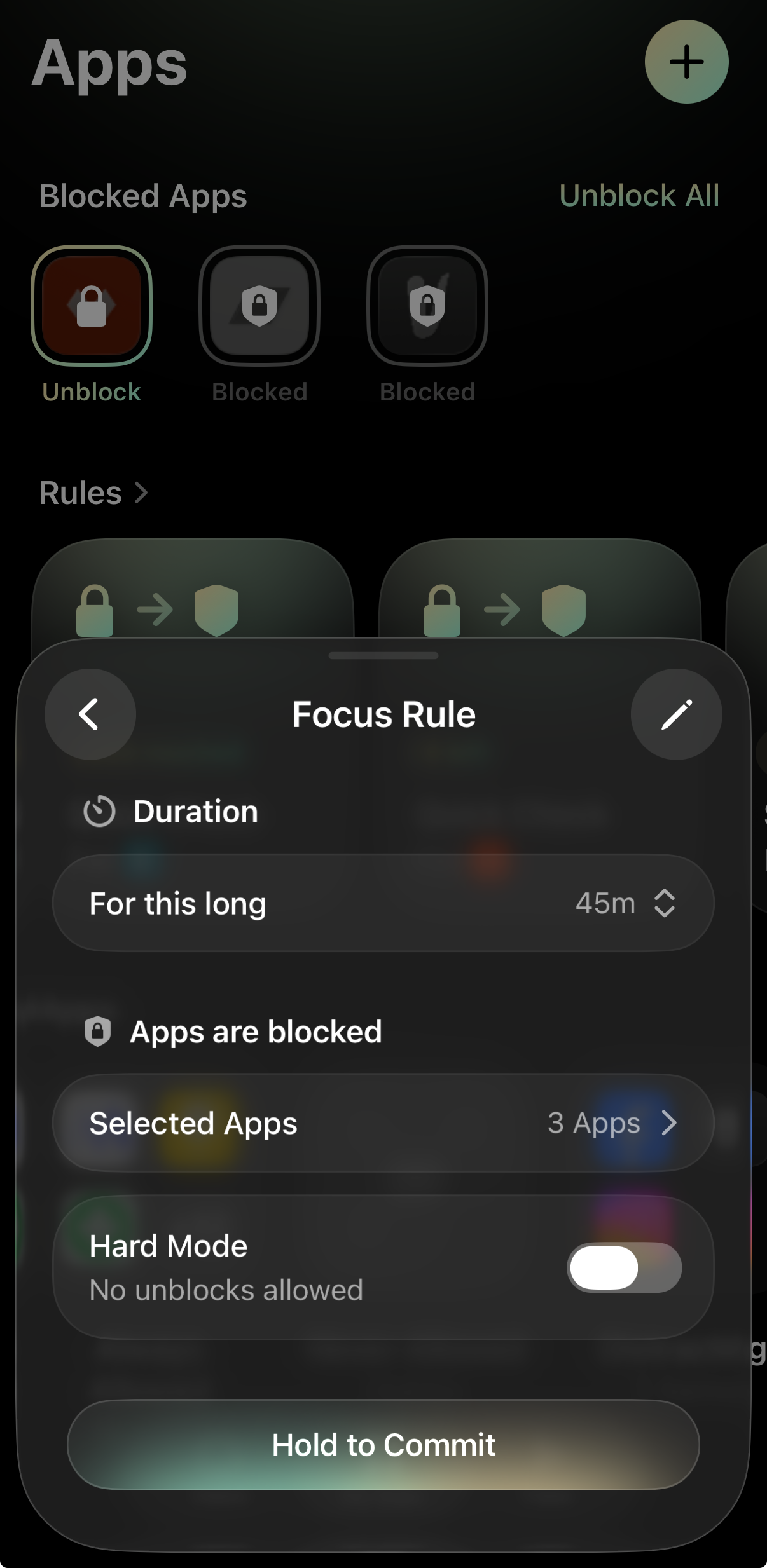
How do I start a non-recurring Session on the iOS version?
To start a Session on the iOS version of the app, tap on the "+" button on the "My Apps" tab and select “Session." You may then edit the following information about your Session by tapping on the editing icons:
-
“Duration”
-
"Selected apps"
-
Block: these apps and websites will be blocked during your Rule
-
Allow Only: all apps, except the ones selected, will be blocked
In the "Hard Mode" section, you may toggle “no unblocks allowed” on or off.
- Off: Take short breaks or cancel
- On: No Unblocks allowed (available only on Opal Pro): Can't unblock or leave early. Get one emergency pass per week
Once you’ve set up your Session, tap and “Hold to Commit” until you see the word “Committed” appear. Your Session is now live.
How can I Unblock Apps in a Session or Leave Early in a Session on the iOS version?
You may only take breaks or Leave Early on apps or websites with “unblocks allowed.” If unblocks are allowed, you may unblock by following these steps:
-
From the “My Apps" tab, tap on your Session (below “Rules”)
-
To “Unblock Apps” on your Session
-
Tap “Unblock Apps”
-
Wait for the Waiting Room to countdown
-
Tap “Continue”
-
Select the apps you’d like to unblock
-
Tap “Continue”
-
Select how long you’d like to unblock for
-
Tap “Unblock”
-
To “Leave Early” on your Session
-
Tap “Leave Early”
-
Wait for the Waiting Room to countdown
-
Tap “Continue”
-
Set the pause duration
-
Tap “Pause” or “Delete Rule” based on your preference
If you’ve setup your Session so that it does not allow unblocks, you will be unable to follow the steps above. Instead, you must wait until the Session ends or use your Emergency Pass.
What if I need to access to an app or website that’s locked on the iOS version?
If you require emergency access to an app that is locked, the iOS version of Opal has an Emergency Pass that you may use once per week. Here's how to disable a locked app/website in the event of an emergency:
- Open the Opal app on your iOS device
- Tap on “Home”
- Tap on “Profile” (accessible from the profile icon in the top right corner)
- Tap on “Settings” (accessible from the gear icon in the top right corner)
- Scroll down and tap on “Emergency Pass”
- Tap “Hold to Redeem”
This button will cancel all of your currently running Sessions, Schedules, Time Limits, and/or Open Limits for one hour, and will also cancel any “Hard Mode” Timer that is active. If your recurrent Sessions, Schedules, Time Limits, and/or Open Limits are programmed to reinitiate, you must edit or delete them (as needed) immediately after using your Emergency Pass. It's also important to note that the "Emergency Pass" should only be used when necessary, as it is strictly available once per week. If you've already used your “Emergency Pass” this week, our Support team is unable to force end a Session, Schedule, Time Limit, Open Limit, or Timer for you. For that reason, we recommend only using your Emergency Pass in a true emergency.