
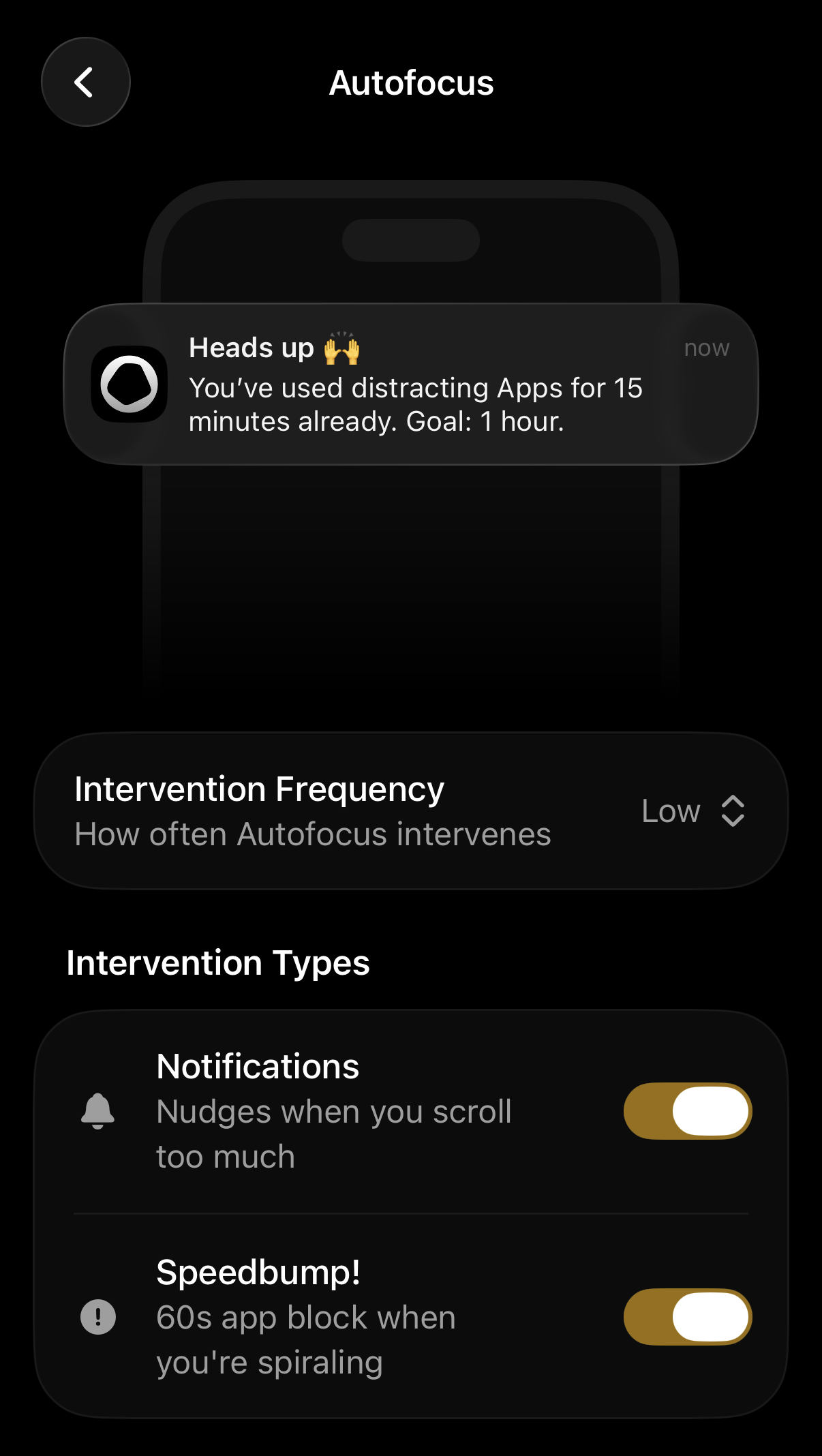
If you would like Opal to intervene on your distracting app or website usage via helpful Notifications, you may enable Autofocus in your Settings. Once you’ve enabled Autofocus, you will receive Notifications (at the intervals you’ve designated) about specific app usage. Here’s how to use the Autofocus feature:
- Open the Opal app on your iOS device
- Tap on “Home”
- Tap on “Profile” (accessible from the profile icon in the top right corner)
- Tap on “Settings” (accessible from the gear icon in the top right corner)
- Tap on “Autofocus”
Once you’ve navigated to the Autofocus screen, you may make the following selections:
- Intervention Frequency: How often Autofocus intervenes (Low/ Medium/ High)
- Notifications: Nudges when you scroll too much
- Speedbump!: 60s app block when you’re spiralling
There, you may also select which apps you’d like Autofocus to send you notifications about:
- Distracting: Opal will nudge you to keep you focused when you are on these Apps.
- Always Allowed: Opal will never block these Apps, or notify you with Autofocus about them.
How do I disable Autofocus?
If you’d like to disable Autofocus within Opal, please follow these steps:
- Open the Opal app on your iOS device
- Tap on “Home”
- Tap on “Profile” (accessible from the profile icon in the top right corner)
- Tap on “Settings” (accessible from the gear icon in the top right corner)
- Tap on “Autofocus”
- Toggle Off “Notifications” and “Speedbump!”