
To gently encourage you to reduce your screen time, Opal has multiple "Waiting Room" options on the iOS version of the app. These “Waiting Room” options will be presented whenever you opt to unblock an app or website. To access this feature, take these steps:
- Open the Opal App
- Tap on the “Home” tab
- Tap on “Profile” (accessible from the profile icon in the top right corner)
- Tap on “Settings” (accessible from the gear icon in the top right corner)
- Tap on "Waiting Room”
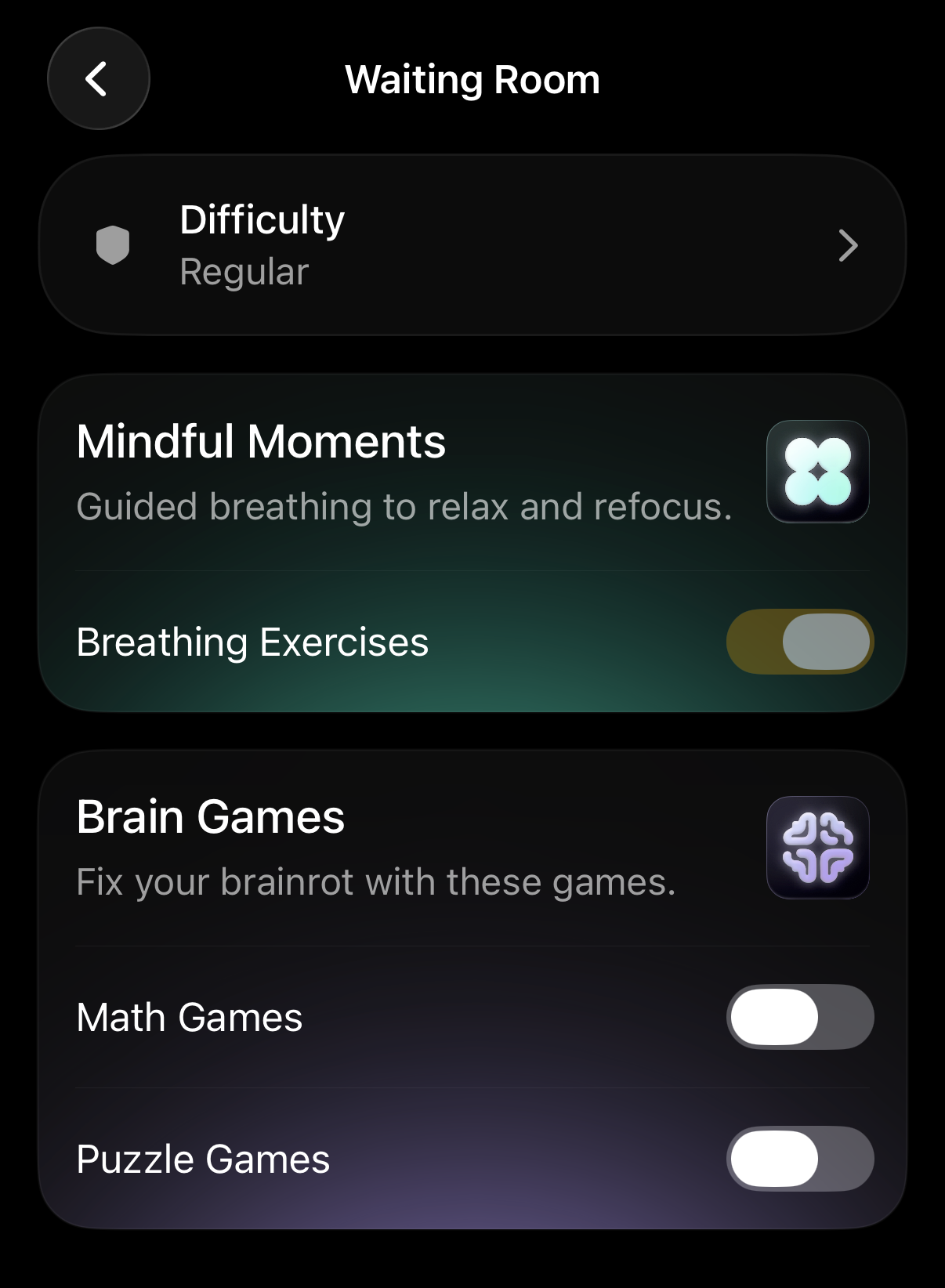
Once you arrive, you may select the following “Waiting Room” content:
- Difficulty Regular: Slight friction before unblocking Hard: Progressively become more challenging after each unblock
- Mindful Moments
- Math Games
- Puzzle Games
💡 Please note that you must have one “Waiting Room” type toggled on to proceed.
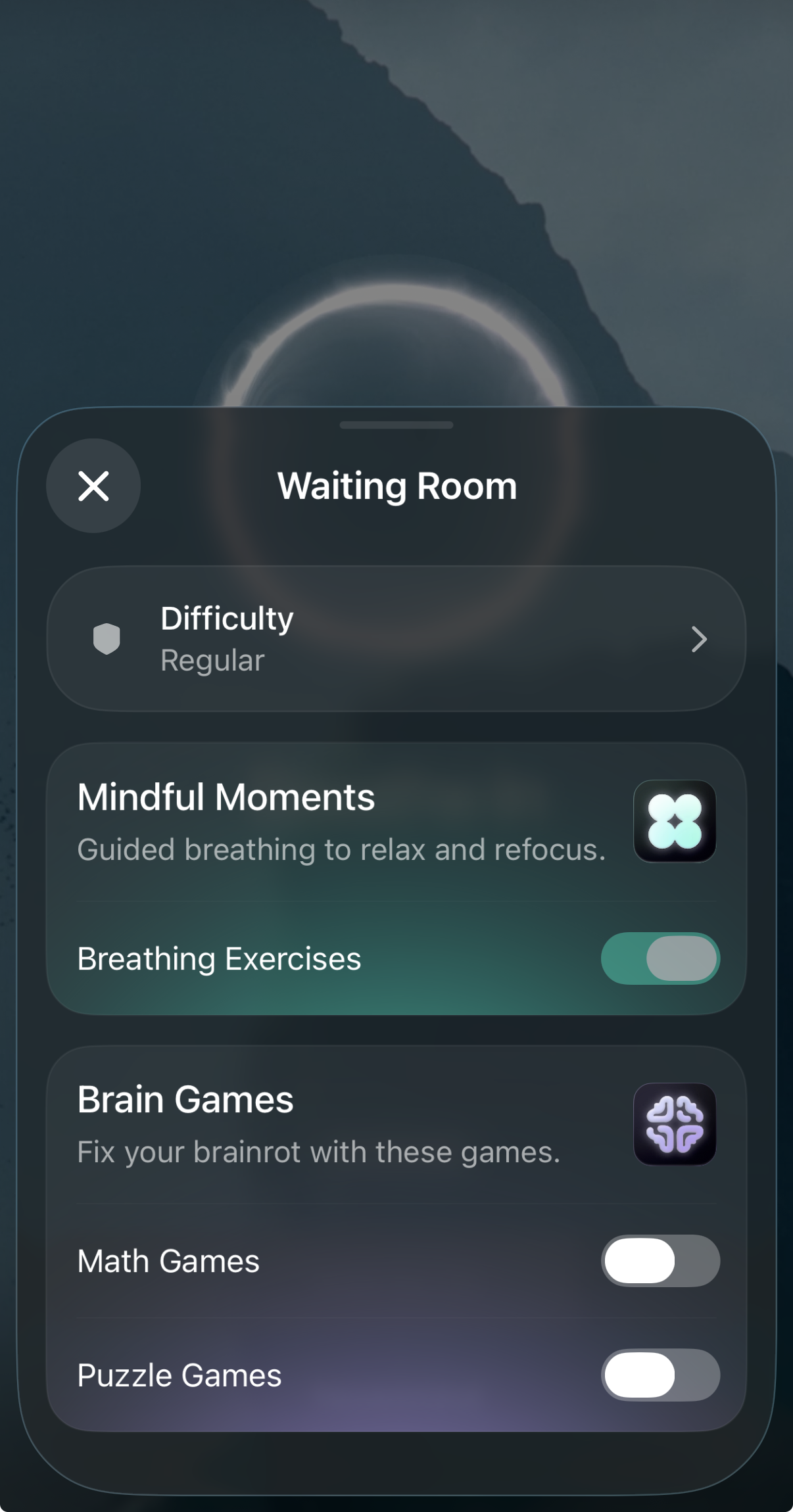
I want to change the “Waiting Room” content that I see on my iOS device!
If you’d like to change or edit your “Waiting Room” content on your iOS device, you may do so by following the steps above. Alternatively, you may do so directly from the “Waiting Room” by following these steps:
- Tap on any app or website listed below “Blocked Apps”
- Tap “Unblock”
- Tap on “Settings” in the top right corner
- Toggle on/off the “Waiting Room” content you prefer
💡 Please note that you must have one “Waiting Room” type toggled on to proceed.