
Given that everyone is motivated differently, Opal has multiple Block Screen options on the iOS version. These Block Screens appear as overlays on apps or websites subjected to a Session, Schedule, Time Limit, Open Limit, or if you’ve designated an app or website as Never Allowed. To choose what type of Block Screens you would like to see on your apps, take these steps:
- Open the Opal App
- Tap on the “Home” tab
- Tap on “Profile” (accessible from the profile icon in the top right corner)
- Tap on “Settings” (accessible from the gear icon in the top right corner)
- Tap on "Block Screens:
Once you arrive, you may toggle on and off the following Block Screens:
- Default: This app is blocked by Opal.
- Pop Culture: See funny pop culture references when you open an app or website.
- Focus Haiku: Find little pieces of wisdom every time you open an app or website.
- Luminaries: Wisdom from great minds to help unlock your own.
- Brutal Insults: You aren’t afraid to get roasted, zinged, and smoked. PG-13.
- Jane Austen: “To sit in the shade on a fine day, and look upon verdure, is the most perfect refreshment.”
- Unplug: Olivia.Unplugged TikTok’s turned into small, mindful actions to do offline.
- Dad Jokes: Stay focused, Champ! Remember son, distractions are like squirrels…
- Jesus Christ: “Therefore do not worry about tomorrow, for tomorrow will worry about itself. Each day has enough of its own trouble.” - Matthew 6:34
- Quranic Inspiration: “Indeed, Allah will not change the condition of a people until they change what is in themselves.” - Quran 13:11
- Offline Ideas: I’ll come up with ideas of stuff to do off of your phone.
- Space News: Updates from the universe, light-years later.
- Fun Facts: Random knowledge to make you wiser with every scroll you skip.
- Default Limit: Default screens shown when app limits are reached.
Please note that you must have one type of “Block Screens” toggled on to proceed.
Why am I seeing the ability to “Unblock” on my Block Screen?
If you see the option to “Unblock” on your Block Screen, it means you have set up an Open Limit. They are the only Rule type on Opal which allows you to Unblock directly from the Block Screen. This type of Block Screen is depicted above. Otherwise, please note you are not able to unblock a Session, Schedule or Time Limit from the Block Screen. Instead, if you have set up a Session, Schedule or Time Limit, you will only see the option to “Dismiss” the Block Screen, which will then close the app. This is intended behaviour.
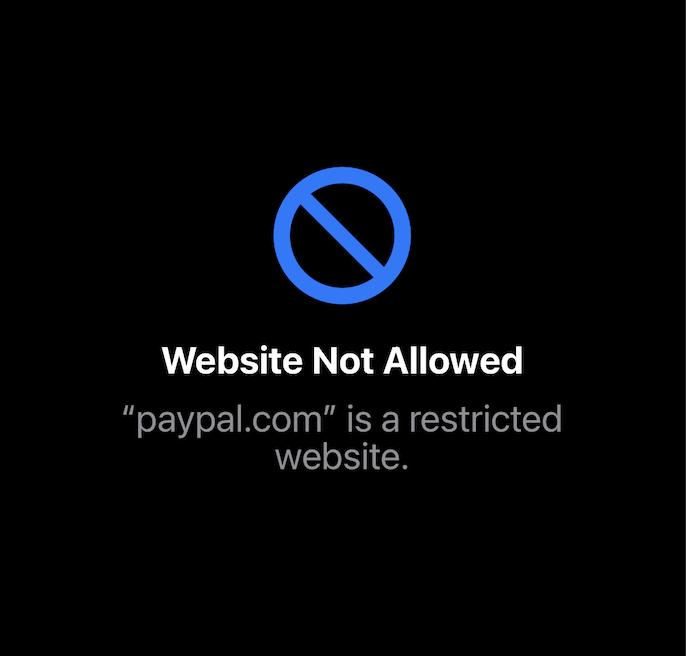
Why am I seeing a “Website Not Allowed” message instead of an Opal Block Screen during my Schedule, Time Limit, or Open Limit?
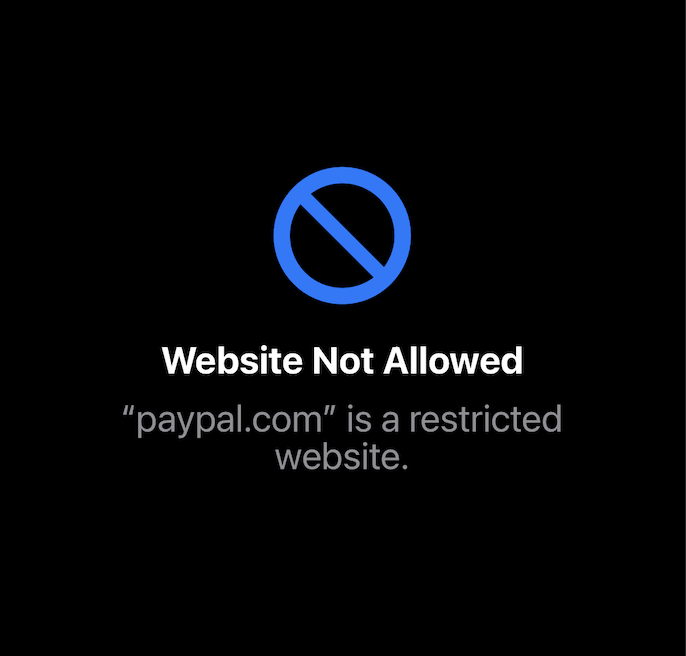
Unfortunately, you may see the above “Website Not Allowed” Block Screen when attempting to open a blocked app or website on your browser, instead of seeing an Opal Block Screen. This is due to changes we’ve implemented to ensure that blocking works on your browser. However, if you opt to block both an app and a website simultaneously (for example, Instagram.com and the Instagram app), you should see Opal Block Screens on both of them.