
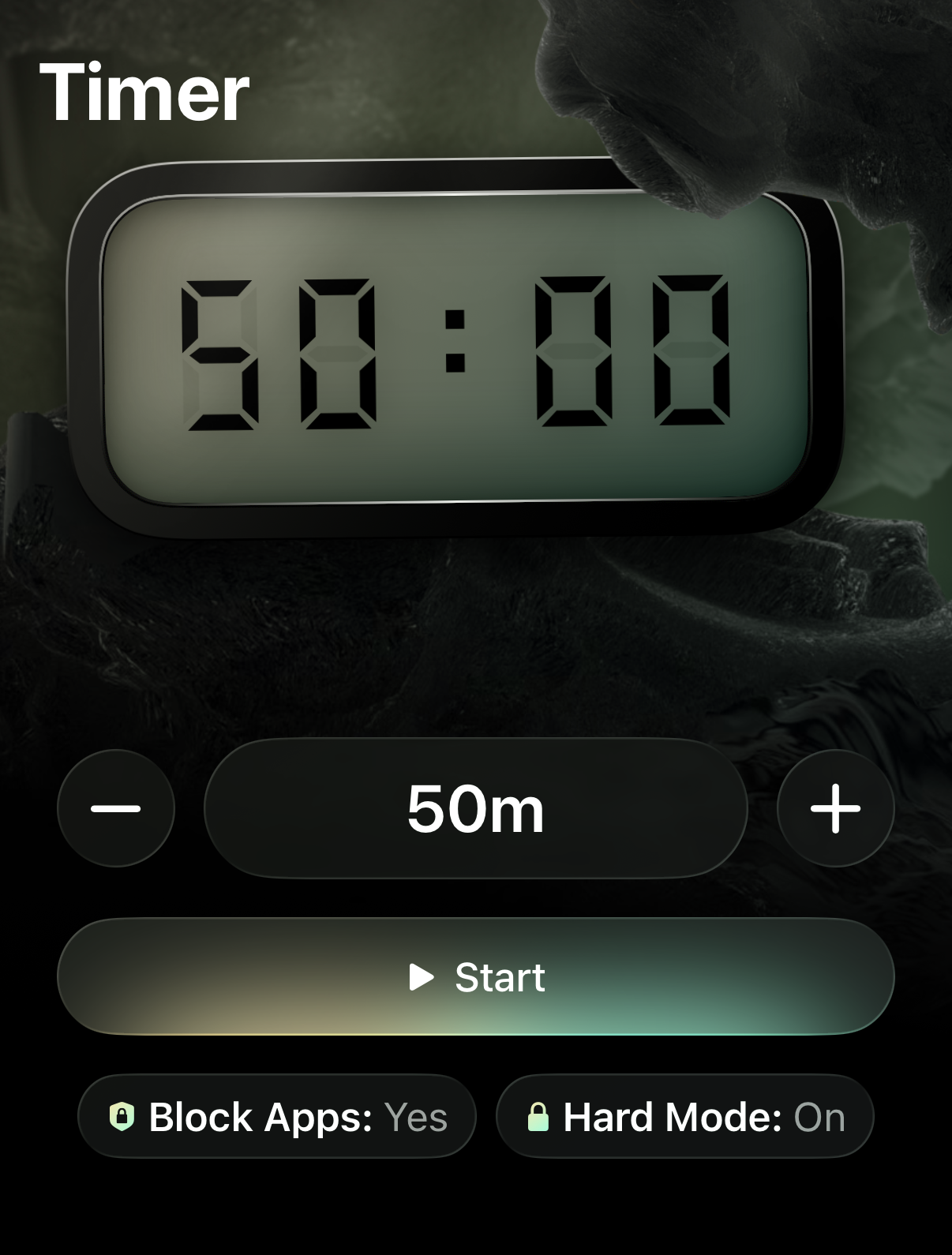
The Timer is an integral feature of Opal. It allows you to initiate a Timer that may block apps for a set amount of time, or indefinitely. All Opal users, regardless of subscription status, may set up one Timer.
How do I start a Timer on the iOS version?
To add a Timer on the iOS version of the app, tap on the "Timer" tab. You may then edit the following information about your Timer:
-
The length by tapping on the “+” icon
-
Alternatively, tap on “Blocked Apps” to edit:
-
The length by tapping on the “+” icon
-
“Blocked Apps”
-
Hard Mode
-
Toggle “On” so you will be unable to exit the Timer
-
Toggle “Off” so you may exit the Timer
-
“Hold to Start”
Your Timer is now live. You may only exit the Timer UI once your Timer ends.
💡 Please note that it’s not necessary to block apps/websites while using the Timer.
How Can I Edit Or Cancel My Timer on the iOS version?
Do you need to modify or cancel your Timer that has Hard Mode toggled “Off”? Here’s how:
- Tap the “X” icon that appears in the top left corner
- Tap and “Hold to Leave”
Now that you’ve exited the Timer, you may create a new Timer with your specifications.
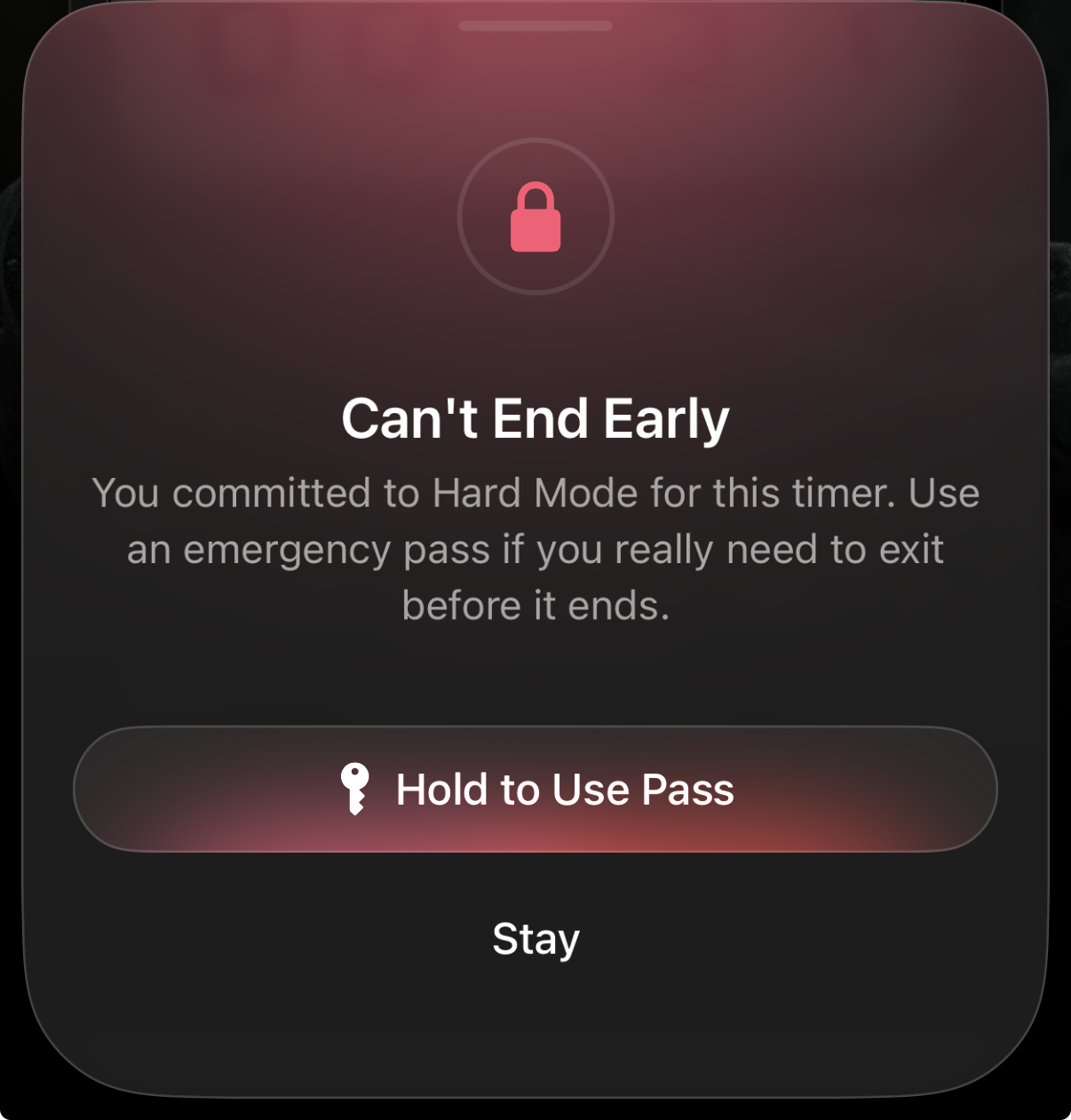
What if I need Emergency access to an app or website while “Hard Mode” has been activated on my Timer?
If you require emergency access to an app or website and you’re currently in a “Hard Mode” Timer, you must use your weekly Emergency Pass. Here's how to disable that Timer:
- Tap the “X” icon that appears in the top left corner
- Tap and “Hold to Use Pass”
This button will cancel all of your currently running Schedules, Time Limits, and/or Open Limits for one hour, and will also cancel your current “Hard Mode” Timer. If your recurrent Schedules, Time Limits, and/or Open Limits are programmed to reinitiate, you must edit or delete them (as needed) immediately after using your Emergency Pass. It's also important to note that the "Emergency Pass" should only be used when necessary, as it is strictly available once per week. If you've already used your “Emergency Pass” this week, our Support team is unable to force end a Schedule, Time Limit, Open Limit, or Timer for you. For that reason, we recommend only using your Emergency Pass in a true emergency.
Do Timers contribute to my Streak?
No. To build yourStreak, you must have a Schedule, Time Limit, and/or Open Limit daily. Timers do not contribute to your Streak.