
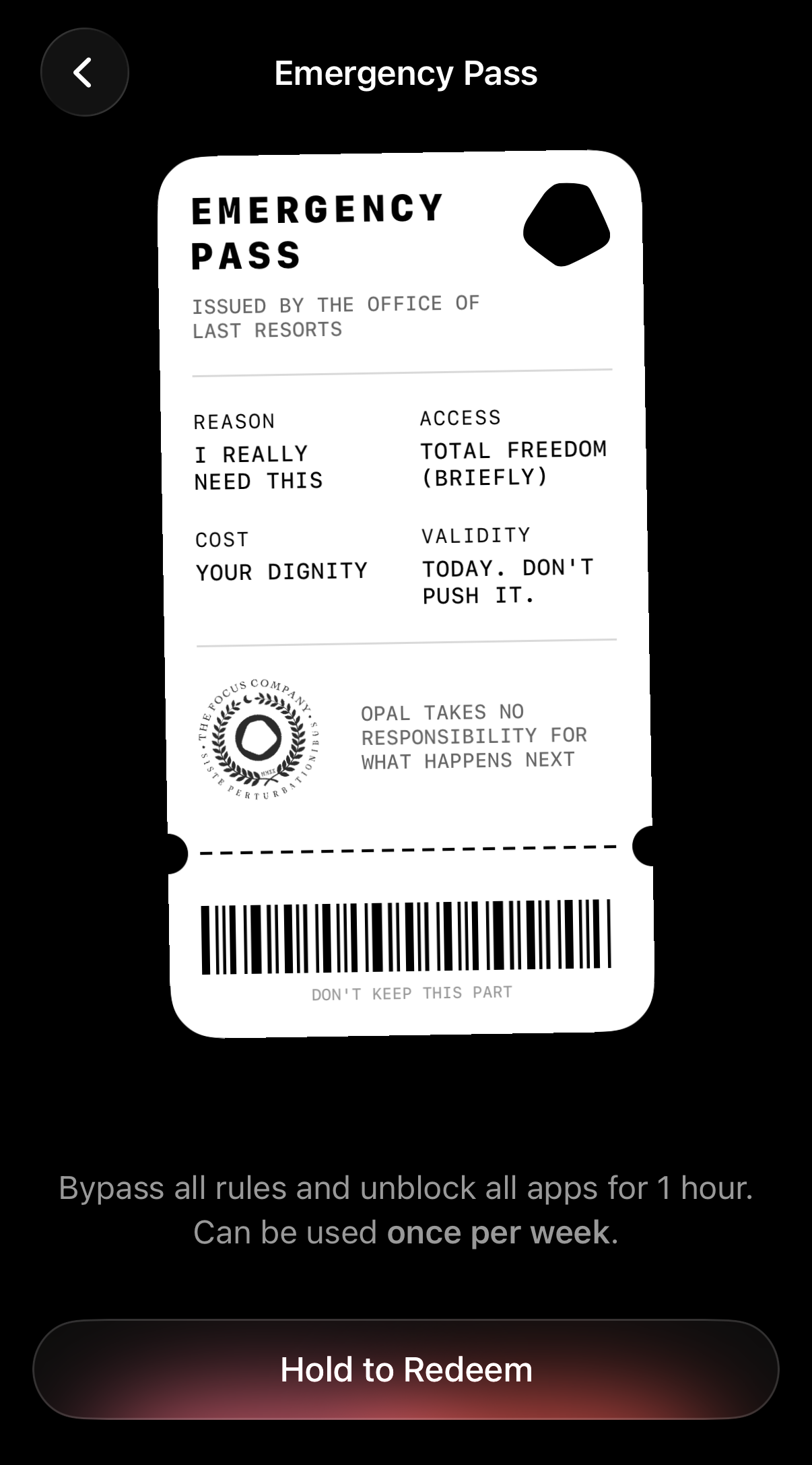
If you’re stuck in a Session, Schedule, Time Limit, Open Limit, or Timer that does not allow unblocks or resets and you need emergency access to apps or websites, please use your Emergency Pass. To access your Emergency Pass while in a Session, Schedule, Time Limit, or Open Limit, take these steps:
- Tap on “Home”
- Tap on “Profile” (accessible from the top right corner)
- Tap on “Settings” (accessible from the top right corner)
- Scroll down and tap on “Emergency Pass”
- Tap and hold on “Hold to Redeem”
Once you’ve enabled your Emergency Pass, all apps and websites will be unblocked for one hour. If your Rules are programmed to reinitiate, you must edit or delete them (as needed) immediately after using your Emergency Pass. Your Emergency Pass is available once per week.
❗ Please note that Opal’s Support team is unable to force end Rules on your behalf, so you must follow the instructions above. If you've already used your Weekly Emergency Pass, you'll need to wait until that Rule ends or until your Weekly Emergency Pass resets to edit it.
What if I need Emergency access to an app or website while “Hard Mode” has been activated on my Timer?
If you require emergency access to an app or website and you’re currently in a “Hard Mode” Timer, you must use your weekly Emergency Pass. Here's how to disable that Timer:
- Tap the “X” icon that appears in the top left corner
- Tap and “Hold to Use Pass”
❗ Please note that Opal’s Support team is unable to force end Timers on your behalf, so you must follow the instructions above. If you've already used your Weekly Emergency Pass, you'll need to wait until that Timer ends to edit it.