
Apple’s Focus feature allows you to eliminate distractions in the form of notifications, messages, and phone calls. To make Opal more robust, you may sync the iOS version of Opal with Focus to disable access to apps. Additionally, you may sync Opal Timers to actions on your device using Shortcut automations.
What are Focus Filters?
Focus Filters are an added functionality on top of each Focus you have enabled on your iOS device. They allow you to customise functionality on specific Apple apps, such as:
- Hiding work calendars when you are spending time with family
- Hiding messages when you are focusing at work
In addition, Apple opened Focus Filters to developers so that third party apps may support customisations based on Focus Filters. You will see your app’s available Focus Filters listed when setting them up in your Focus Mode Settings.
How do I set up Focus Filters?
To set up a Focus Filter, take these steps:
- Exit Opal
- Open your device "Settings"
- Scroll down and tap "Focus"
- Select the Focus you want to add a Filter to
- Scroll down to "Focus Filters" and tap "+Add Filter"
There you will see the available options, based on the apps you have downloaded on your device. You can read more about how to set up a Focus here.
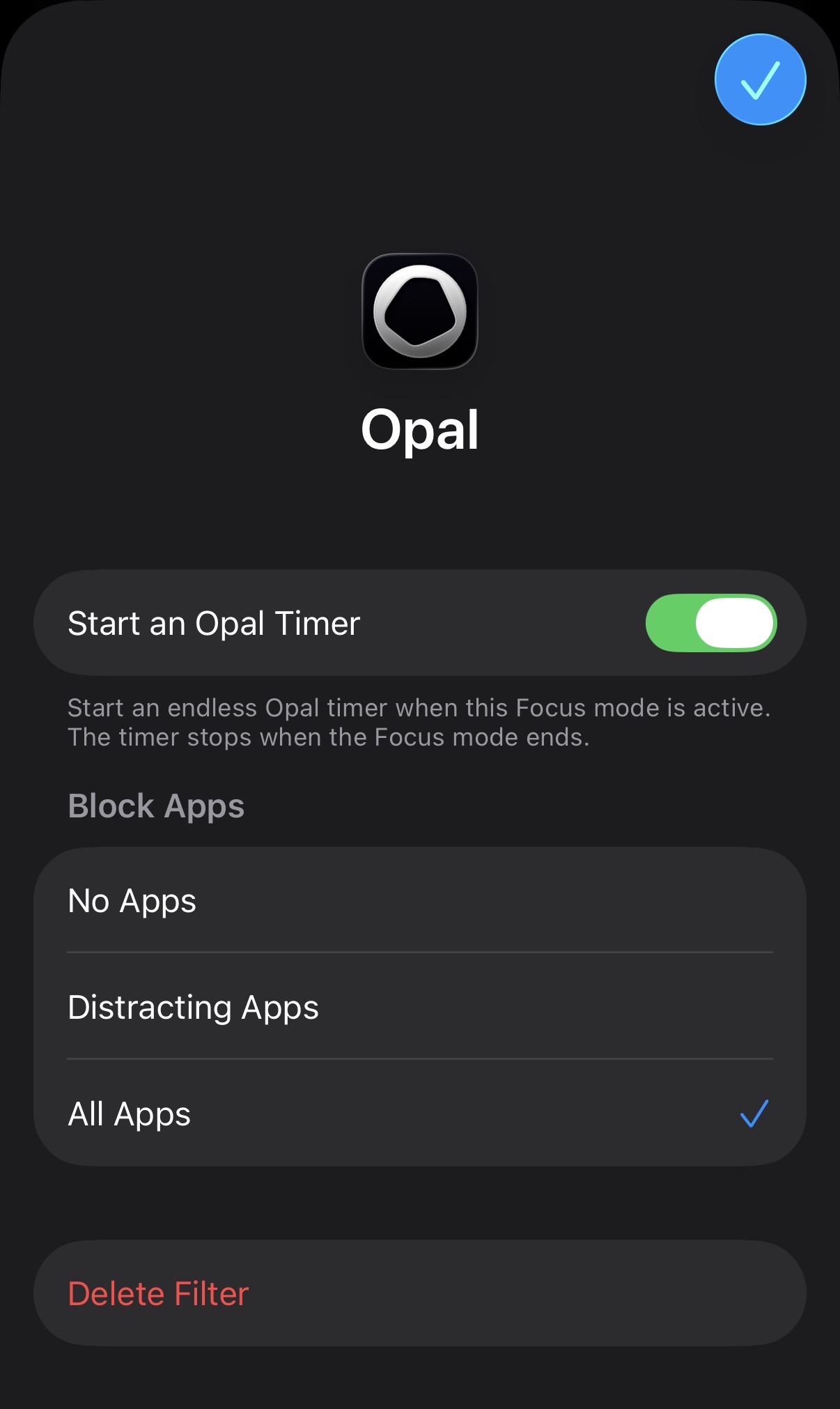
How to Create an Opal Focus Filter
An Opal specific Focus Filter allows you to completely disable apps on your device while in a Focus mode. When you add an Opal Focus Filter to a focus mode, when that Focus is enabled, an Opal Timer will start automatically and end automatically when the Focus is enabled and disabled. Here's how to set this up:
- Exit Opal
- Open your device "Settings"
- Scroll down and select "Focus"
- Select your "Work" Focus
- Scroll down to the Focus Filters and tap "+Add Filter"
- Tap “Opal: Start an Opal Timer”
- Make your selection to block “No Apps,” “Distracting Apps,” or “All Apps”
- Tap “Add”
- Tap on specific parameters within your Work Focus to further edit them
Once activated, your Opal Focus Filter will start a timer that blocks either “No Apps,” “Distracting Apps,” or “All Apps”. To exit the Work Focus and the corresponding timer, tell Siri to “Stop Work Focus.”
‼️ Please note that this sync is one-directional from Focus → Opal. This means that when you end the Focus, the timer within Opal will also end. However, if you instead end the Timer within the Opal app, your Focus will not end.
What happened to your Block List feature?
Currently, we do not support the Block List feature in the newest version of the app. For now, you may designate apps as Distracting, Always Allowed, and Never Allowed. Therefore, it’s important to mention that if you are syncing Opal with your Focus, you may use your Focus to block Distracting apps, or all apps. Currently, you are not able to customise which apps sync with your Focus beyond those two options. We aim to reintroduce the Block List feature in the future, but currently we do not have an exact timeline. Stay tuned on that front!
My Focus seems to be broken! What should I do?
If your Focus is not correctly syncing with Opal, please first update to the newest version of the app here. If you update and your Focus does not correctly initiate an Opal Timer, please contact Support by navigating to your Settings > Chat With Support. Ask to speak to a human, and include a screenshot of your Focus Filter there, as well as a description of what happens when your Focus initiates.