
If you’ve purchased Opal Pro via the AppStore, Stripe, or via our email flow and do not see it reflected within your Opal account on the iOS version, you will need to restore your purchase. To do so, follow these steps:
- Tap on “Home”
- Tap on “Profile” (accessible from the top right corner)
- Tap on “Settings” (accessible from the top right corner)
- Scroll down and tap on “Restore Purchase”
Once those actions are complete, your subscription purchase should be associated with your Opal account.
❗ Please note that it may take a few hours for the AppStore to correctly associate your Opal Pro subscription with your existing account. If you have waited for a few hours and already attempted to Restore Purchase, please contact Support.
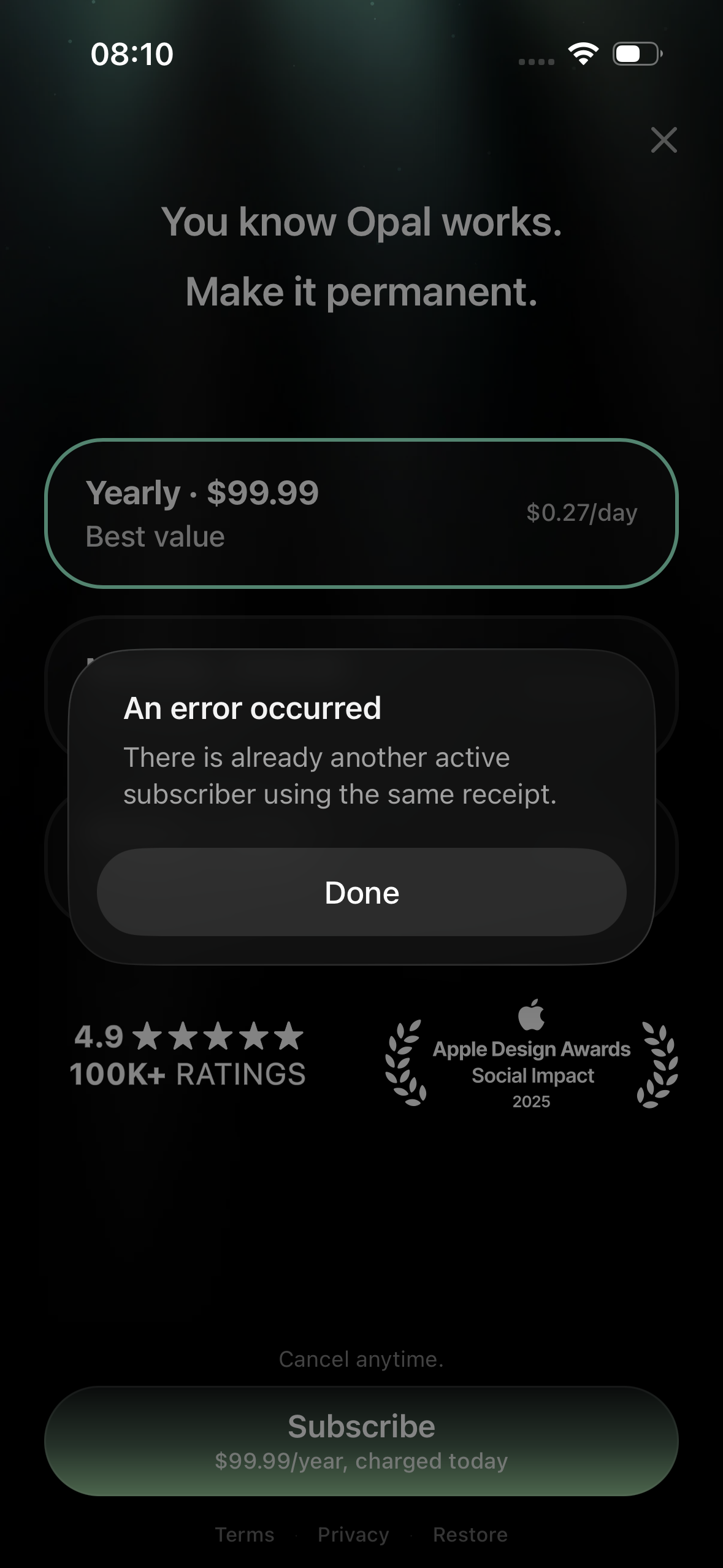
I signed up for my Opal account with a different email than the one I signed up for my subscription with! Now what?
It should not matter if you signed up for an Opal account using a different email than the one you signed up for your subscription with. You should be able to click the “Restore Purchase” button in your Settings to associate your subscription with your account.
That said, if you attempt to click the “Restore Purchase” button and you see an error message appear that states “there is already another active subscriber using the same receipt,” it’s likely that you’ve signed up for two separate Opal accounts and have already associated your existing purchase with another account.
To access your subscription, please log out of the account you are currently using, and log back into your existing account. Alternatively, if you are unsure of the credentials associated with your other account, please contact Support by navigating to your Settings > Chat With Support. Please provide all emails and phone numbers (with international dialling codes included) that you may have signed up for an Opal account via. Our Support team will then assist with ensuring your subscription is associated with your existing account, and deleting any extra accounts you do not want to keep.