
Shortcuts is used to build automatic workflows for your personal and professional life. You may sync shortcuts with the iOS version of Opal to better integrate Opal into your daily routines and block distracting apps and websites. Here’s some examples of how you may sync Opal with Shortcuts that are available on iOS 26.5 onwards.
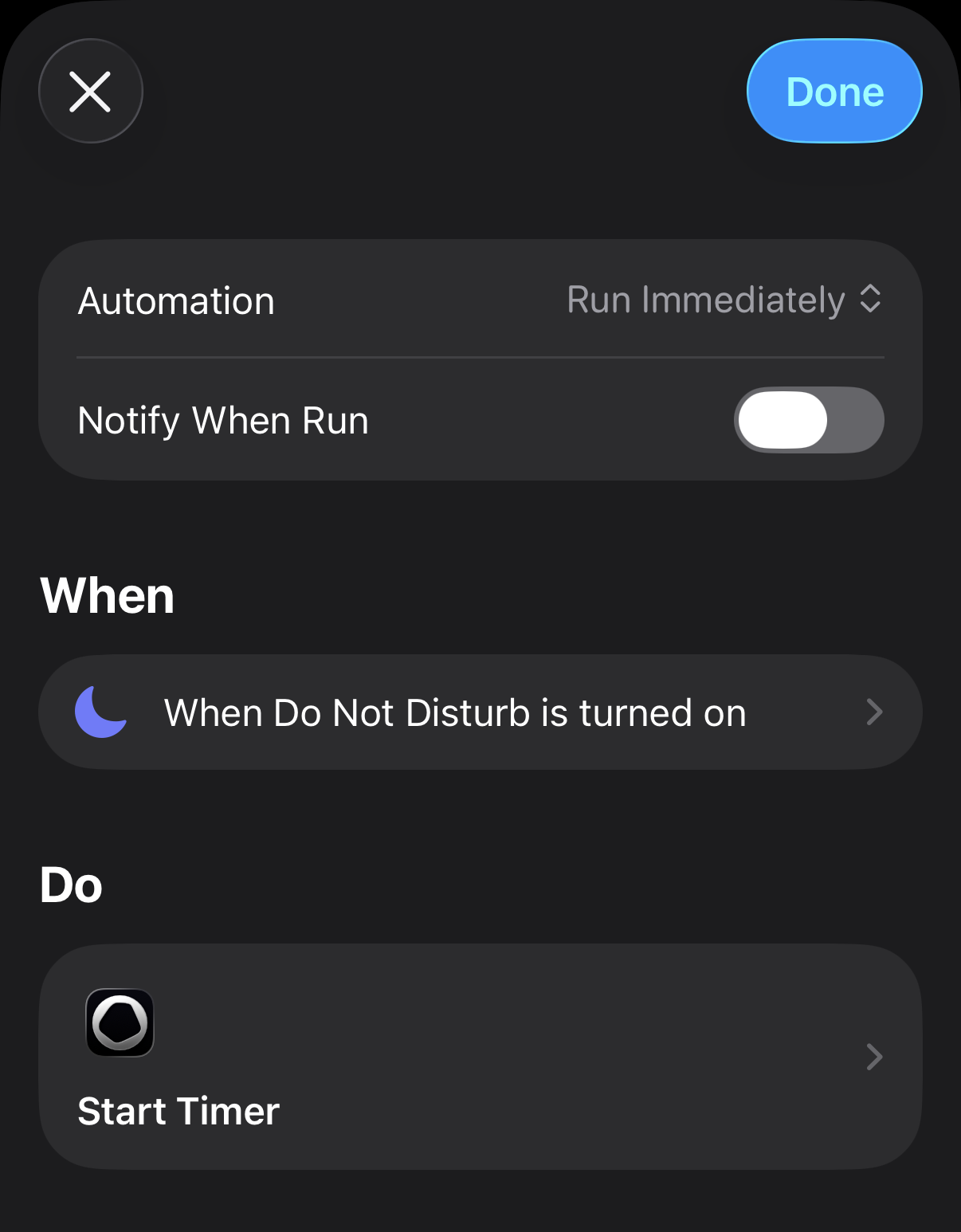
Start an Opal Timer automatically when you turn on "Do Not Disturb"
If you would like to a Timer to begin when you turn on "Do Not Disturb," follow these steps:
- Exit Opal and open Shortcuts
- Tap the "Automation" Tab
- Tap the "+" icon in the top right corner if you have existing Automations; select "New Automation" in the centre of the screen if not
- Tap "Do Not Disturb"
- Select “Is Turned On” and "Run Immediately;" do not toggle on “Notify When Run”
- Tap "Next"
- Tap “Opal: Get Status, Start Timer, Stop Timer”
- Tap “Start Timer”
Once that’s complete, a Timer will begin automatically when you turn on “Do Not Disturb.”
Start an Opal Timer automatically when you arrive at work
If you'd like an Opal Timer to start automatically when you arrive at work, follow these steps:
- Exit Opal and open Shortcuts
- Tap the "Automation" Tab
- Tap the "+" icon in the top right corner if you have existing Automations; select "New Automation" in the centre of the screen if not
- Tap on "Arrive"
- Beside "Location," tap "Choose"
- Select your desired location
- Choose between "Anytime" or "Time Range"
- Tap "Run immediately"
- Tap "Next"
- Tap “Opal: Get Status, Start Timer, Stop Timer”
- Tap “Start Timer”
Once that’s complete, a Timer will begin automatically when you arrive at work.
Start an Opal Timer automatically when you open a specific app
If you'd like an Opal Timer to start automatically when you open a specific app or website, you may do so. This may be particularly helpful for spending quality screen-time on education apps, reading apps, meditations apps, or the like. To do so, follow these steps:
- Exit Opal and open Shortcuts
- Tap the "Automation" Tab
- Tap the "+" icon in the top right corner if you have existing Automations; select "New Automation" in the centre of the screen if not
- Tap on "App"
- Select the app you'd like to trigger a Timer with when opened
- Tap "Choose" to select your app
- Select “Is Turned On” and "Run Immediately;" do not toggle on “Notify When Run”
- Tap “Next”
- Tap “Opal: Get Status, Start Timer, Stop Timer”
- Tap “Start Timer”
Once that’s complete, a Timer will begin automatically when you open the app or website you’ve specified.