
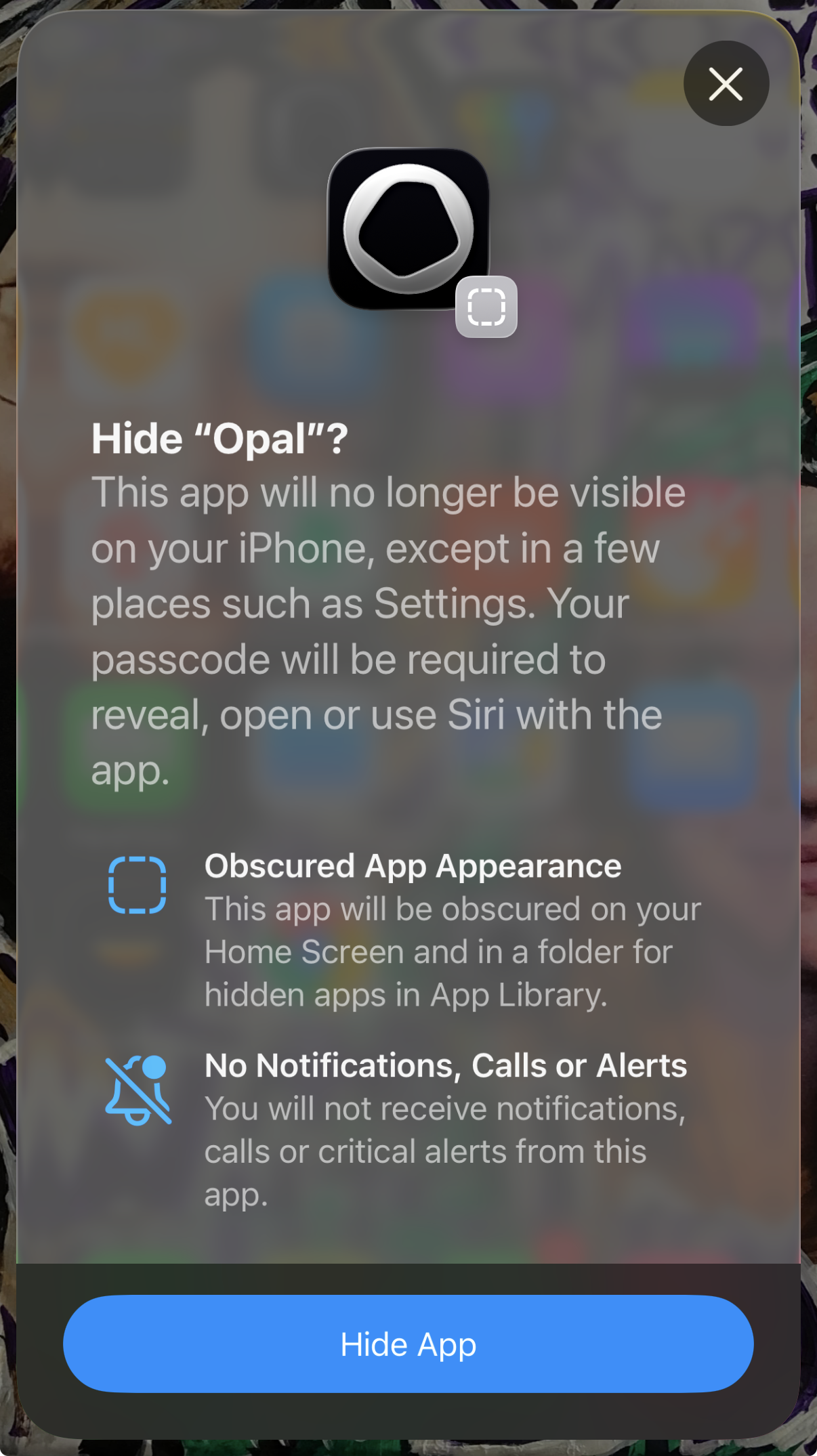
To assist with making Opal foolproof, it is now possible to create an Opal Passcode (which is separate from implementing a Screen Time Passcode) on the iOS version. To do so, take the following steps:
- Exit the Opal app
- Long press on Opal from your Home screen
- Tap “Require Passcode” or “Hide and Require Passcode”
- Enter your iPhone Passcode
- Tap “Hide App”
This action will mean that Opal will no longer be visible on your iPhone, except in a few places such as Settings. Your passcode will be required to reveal, open or use Siri with the app. Additionally, it will result in the following:
- Obscured App Appearance: This app will be obscured on your Home Screen and in a folder for hidden apps in App Library.
- No Notifications, Calls or Alerts: You will not receive notifications, calls or critical alerts from this app.
❗ To make this feature foolproof, we’d recommend implementing a Screen Time Passcode in conjunction. This is particularly helpful for parents who are setting up restrictions on their child’s device.
How do I remove the Opal Passcode?
To remove Opal from the Hidden Folder in your App Library and return the app to your Home screen, take the following steps:
- Exit the Opal app
- Swipe right on your device until the App Library appears
- Scroll down and tap on “Hidden”
- Enter your iPhone Passcode
- Hold and press on the Opal app icon
- Drag the app to your Home screen