
To enhance the security of your Opal rules and set-up, you may now enable an Opal PIN code on your device or on your children’s device (if you’re using Opal’s Parental Controls features). This feature will require that you use a 4-digital PIN before unblocking apps, editing rules, changing service lists, signing out, deleting your account, or changing uninstall protection. To access this feature, ensure you are on the newest version of the iOS app here.
Once you’re on the newest version of the Opal app, you may enable PIN code access by following these steps:
- Tap on “Home”
- Tap on “Profile” (accessible from the top right corner)
- Tap on “Settings” (accessible from the top right corner)
- Tap on “PIN code access”
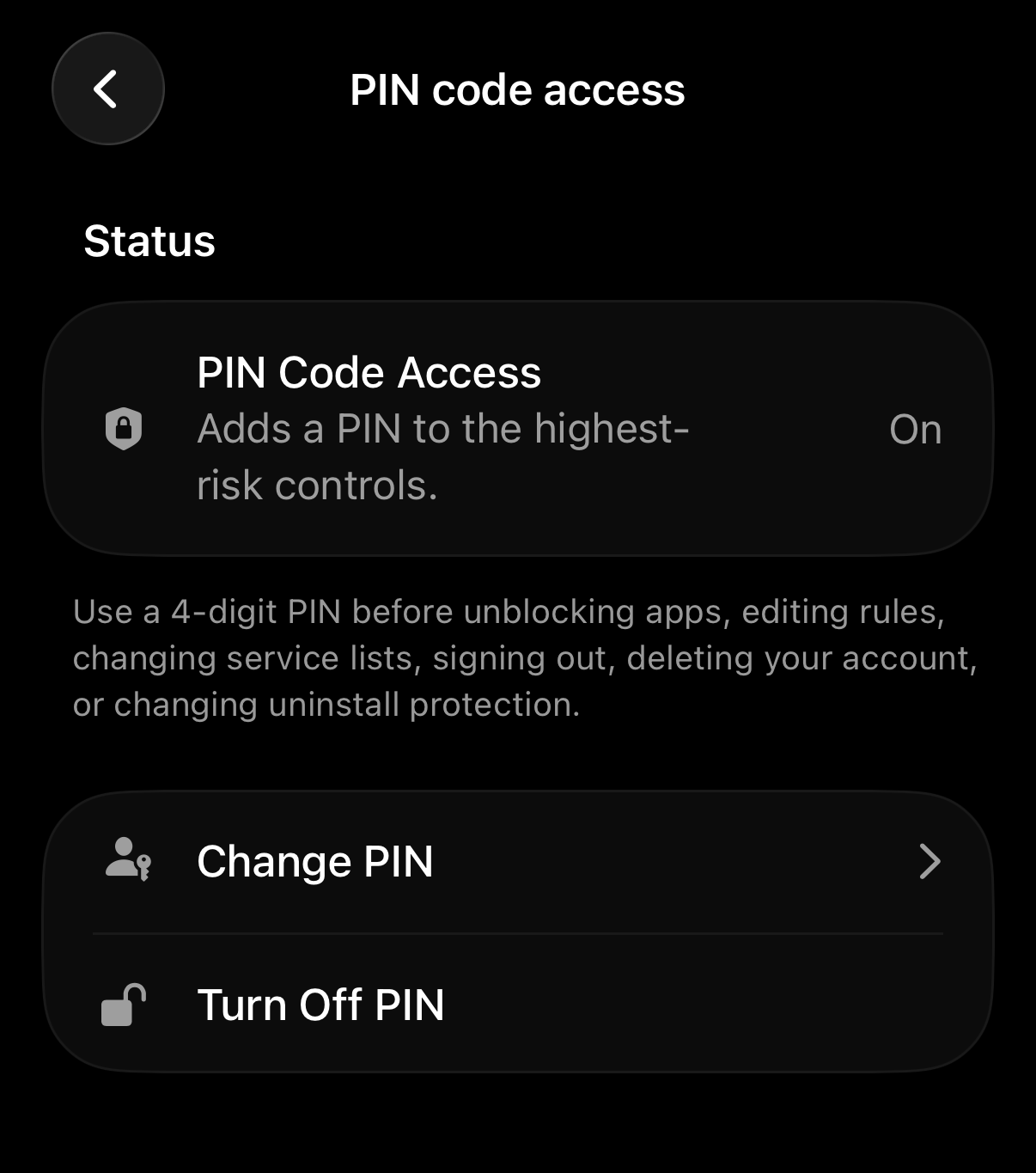
Once you’ve navigated to the PIN code access section, you may enable your PIN code by following these steps:
- Tap on “Set PIN”
- Input a four digit PIN
- Input the four digit PIN again to confirm
The PIN is now implemented, and will be required before unblocking apps, editing rules, changing service lists, signing out, deleting your account, or changing uninstall protection.
I want to remove my Opal PIN code!
If you set up an Opal PIN code yourself, you can remove it at any time — as long as you know your PIN, just follow the steps below.
If a parent or guardian set the PIN code on your behalf (for example, using Opal's Parental Controls), they'll need to remove it for you. Please ask the person who set it up.
To remove your PIN once you know it, follow these steps:
- Tap on “Home”
- Tap on “Profile” (accessible from the top right corner)
- Tap on “Settings” (accessible from the top right corner)
- Tap on “PIN code access”
- Tap on “Turn Off PIN”
- Enter your PIN
Once those steps are complete, your Opal PIN code will be removed.
I forgot my Opal PIN code!
If you’ve forgotten your Opal PIN code and do not have parental controls applied to your account, you may ask our Support bot to reset it on your behalf. To do so, first ensure you are on the newest version of the app here. After that’s complete, follow these steps:
- Tap on “Home”
- Tap on “Profile” (accessible from the top right corner)
- Tap on “Settings” (accessible from the top right corner)
- Tap on “Chat with Support”
- Ask the bot to reset your PIN code
That should sort you out.